Reading and writing
Reading and writing
← Documentation · Previous: Getting started · Next: Chapters
The page is the app. Everything else opens over it and gets out of the way again.
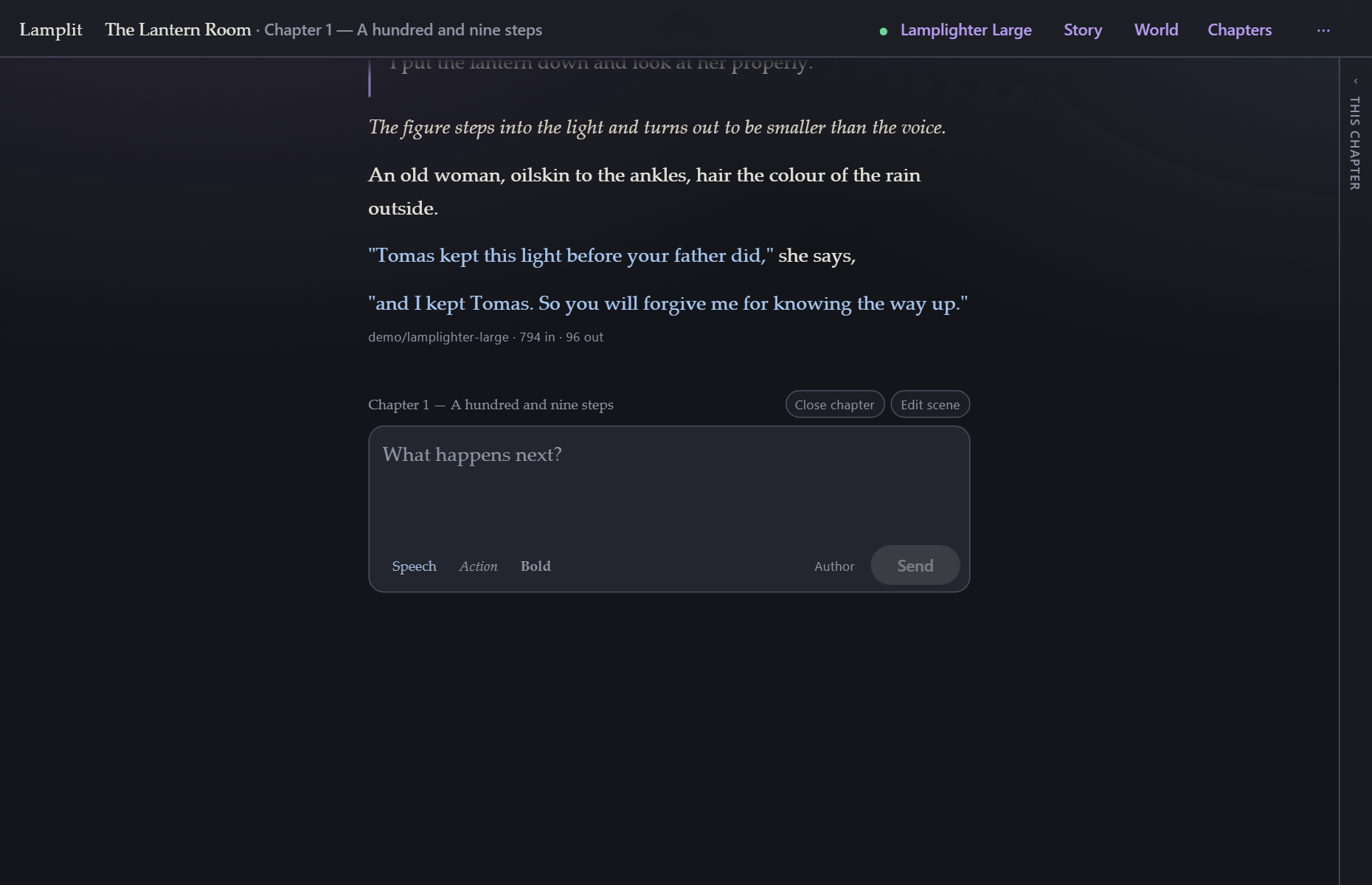
The page
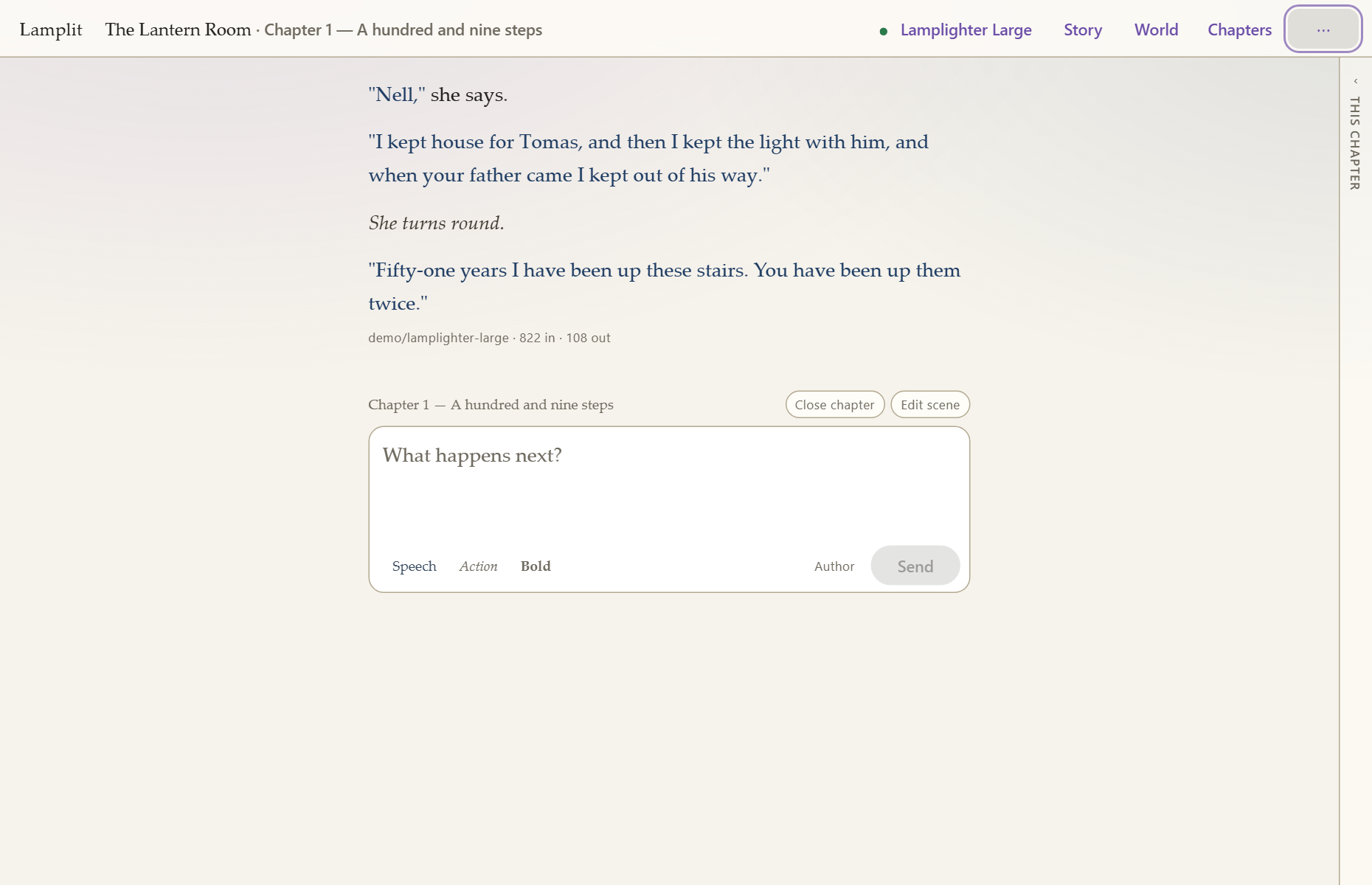
The composer is the end of the page, not a shelf under it. The story, the chapter’s two buttons and the box you write the next line in are all in one scroll: reach the box and you have reached the end of the story so far. Scroll up to read back and it goes away with everything else, so a chapter is text from the top of the window to the bottom of it — which matters most where the screen is smallest and where the model writes faster than you read. There is a third of a screen of quiet under the box, so the last line of the story is read above it rather than against the bottom edge.
Your lines sit in a quiet block with a rule down the side. The model’s answers are set as prose, in a serif, at a measure that is comfortable to read rather than as wide as your monitor.
Three things are done to the model’s text as it arrives:
- Markdown is rendered (and sanitised — nothing from a model can run in your browser).
- “Quoted speech” is set apart in its own colour, so a page of dialogue reads as dialogue.
*Actions in asterisks*are italicised.
Under each answer, if you want it, is the model that wrote it and what the turn actually cost —
612 in · 148 out, taken from the provider’s own usage rather than guessed.
Who is speaking
A story with a cast, played one character at a time, puts a small name above each passage: the character who wrote it, in their own colour, with a dot to match. Your own lines carry your persona’s name, quietly, and a run of turns by the same speaker is named once — the second one is the same person still talking.
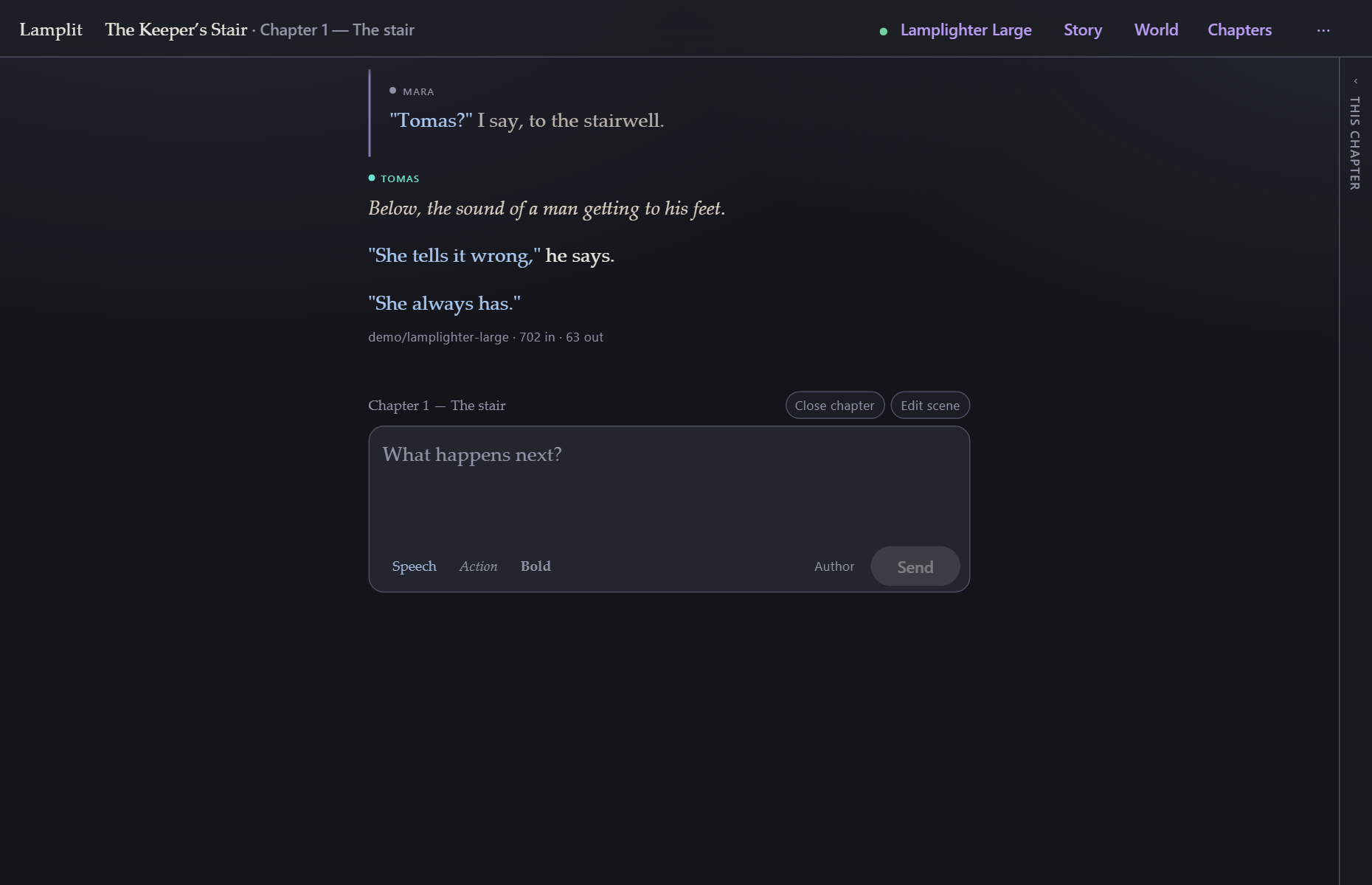
That is the whole of it. No avatars, no boxes, no borders: it is set in the interface font at the size the meta line uses, so it reads as a note above the words rather than as the first of them.
- A narrator’s story has no labels at all. The page is the narrator’s and you know it.
- Nor does an ensemble, where the model answers as whoever the moment calls for: no single character wrote the passage, and the prose carries the names as it always did.
- A name is the one that was stored when the line was written. Rename a character and what she already said stays in her old name; only what she says next is Anna. Delete her and her lines keep her name, in the muted colour, because the colour went with her.
- A switch mid-chapter shows the label again, even where the two passages are by the same character: something happened between them.
The composer
The box grows as you type, up to a point, and then scrolls. It is not there at all when the chapter cannot be written into — instead you get the reason and the button that fixes it:
This chapter has no scene yet — write it Chapter 2 is closed — continue it Pick a model in Connection
| Key | Does |
|---|---|
| Enter | send |
| Shift+Enter | new line |
| Ctrl/Cmd+Enter | regenerate the last answer |
Stop replaces Send while an answer streams, and keeps whatever arrived before you pressed it — a half-written passage is still a passage, and you can edit it or carry on from it.
What you type looks like what will be read. The box is set in the reading face, and a line
is coloured as you write it: "speech" in the speech colour the moment the closing quote lands,
*an action* in italics as soon as the second asterisk does, **bold** likewise — the asterisks
disappear and the mark stays. Three quiet words under the box do the same for a selection, or for
whatever you type next: Speech puts quotes around it (or opens an empty pair to write into),
Action and Bold are what they say. The shortcuts are Ctrl+’, Ctrl+I and Ctrl+B.
Nothing about the message itself has changed: it is still the plain text with its asterisks and
quotes, which is what the model reads, and a heading or a list typed the markdown way still
renders as one after sending. Editing a message opens the same editor, where Enter starts a
paragraph and Ctrl+Enter saves.
Scroll up to read back and a small ↓ appears in the margin, in the same column as the message actions: one click and you are at the end of the page again, box included. Streaming never drags you back on its own — but while you are at the end, it keeps you there, so an answer arriving is read without touching anything.
Start typing and the box comes to you. A letter pressed while nothing is focused — not a field, not a dialog, not a button — focuses the composer, brings the end of the page into view and takes the letter, so finishing a chapter half a page up and writing the next line is one keystroke rather than a scroll and a click. Space is left alone: it pages the story down, which is what a reader wants it for.
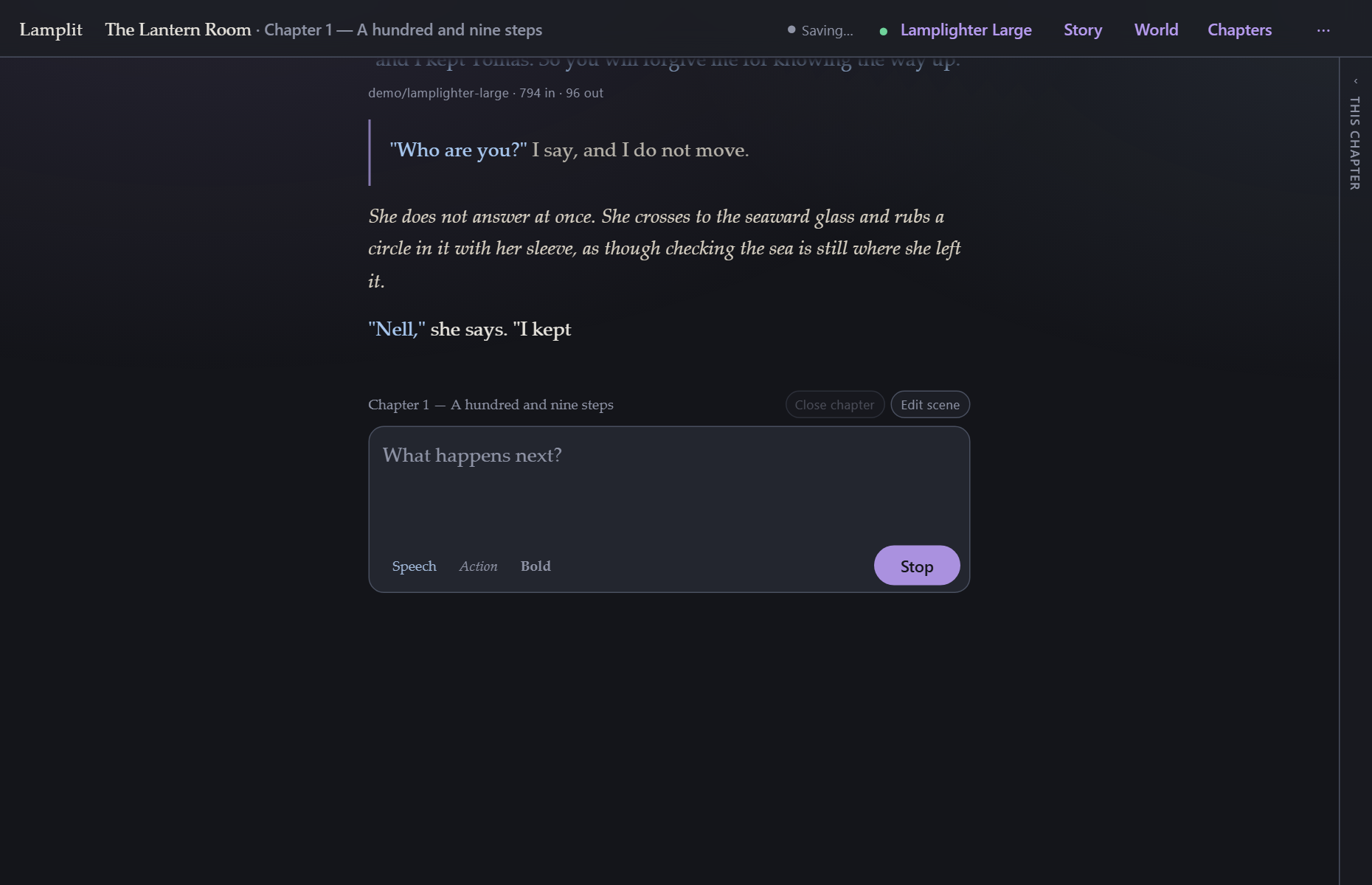
Saying it as the author
Sometimes what you want to say is not your character’s. The storm arrives tonight. She should refuse. Written into the story it is a hint the model may or may not take; written as a direction it is an instruction the model is told to follow.
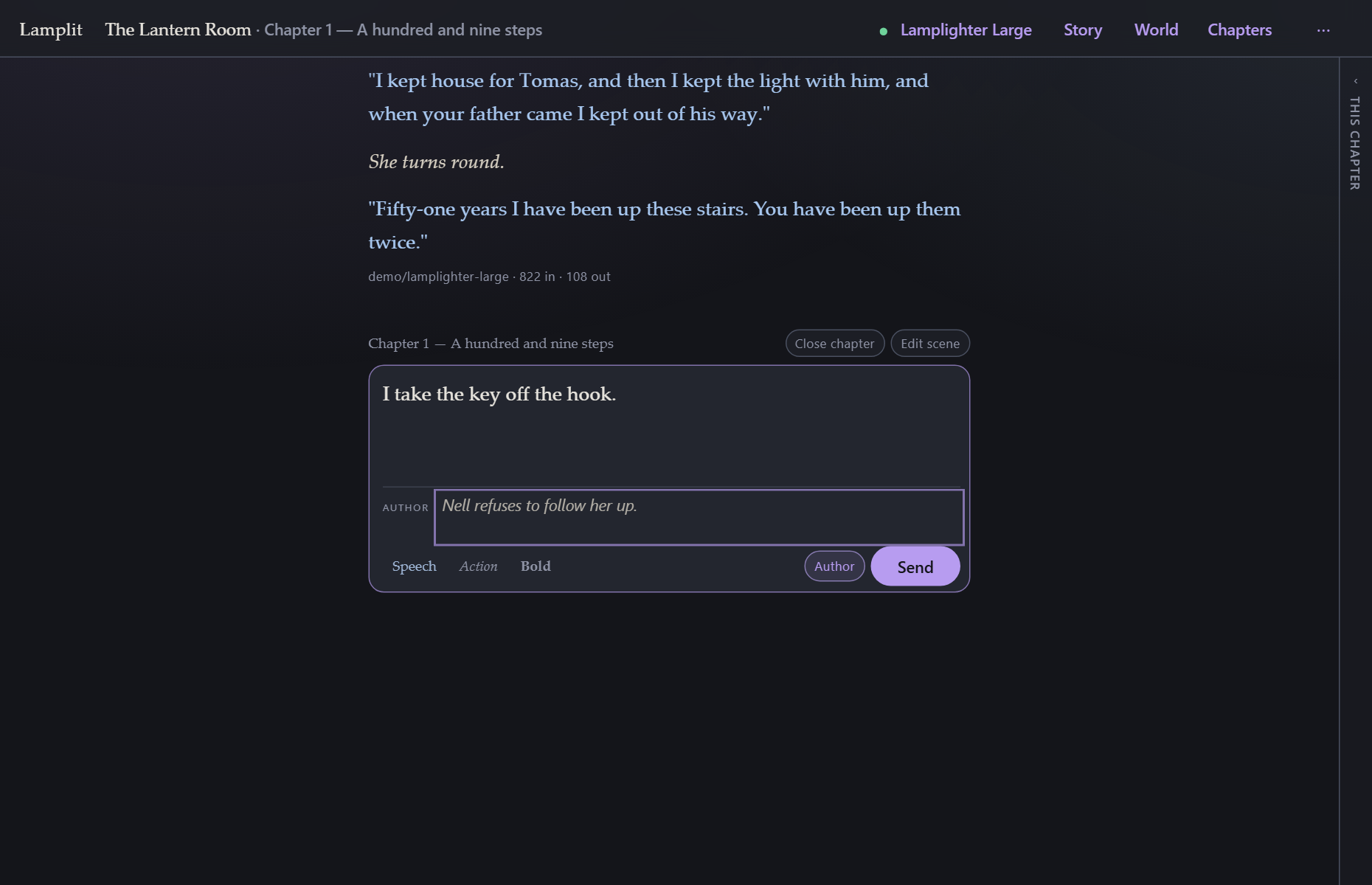
Two ways to write one, and they end in the same place:
- The Author button beside Send opens a field under the box, and the cursor goes into it.
[AUTHOR]at the start of a line takes that line and everything after it out of the prose and into that field as you type. The tag is removed. It is a shorthand for the button, not a syntax: the split happens in front of you, so what leaves the composer is always what you can see in it.
A message can be prose, a direction, or both — “Mara pushes the door open.” with “The room is empty, and it should not be.” underneath it. Send with either half filled.
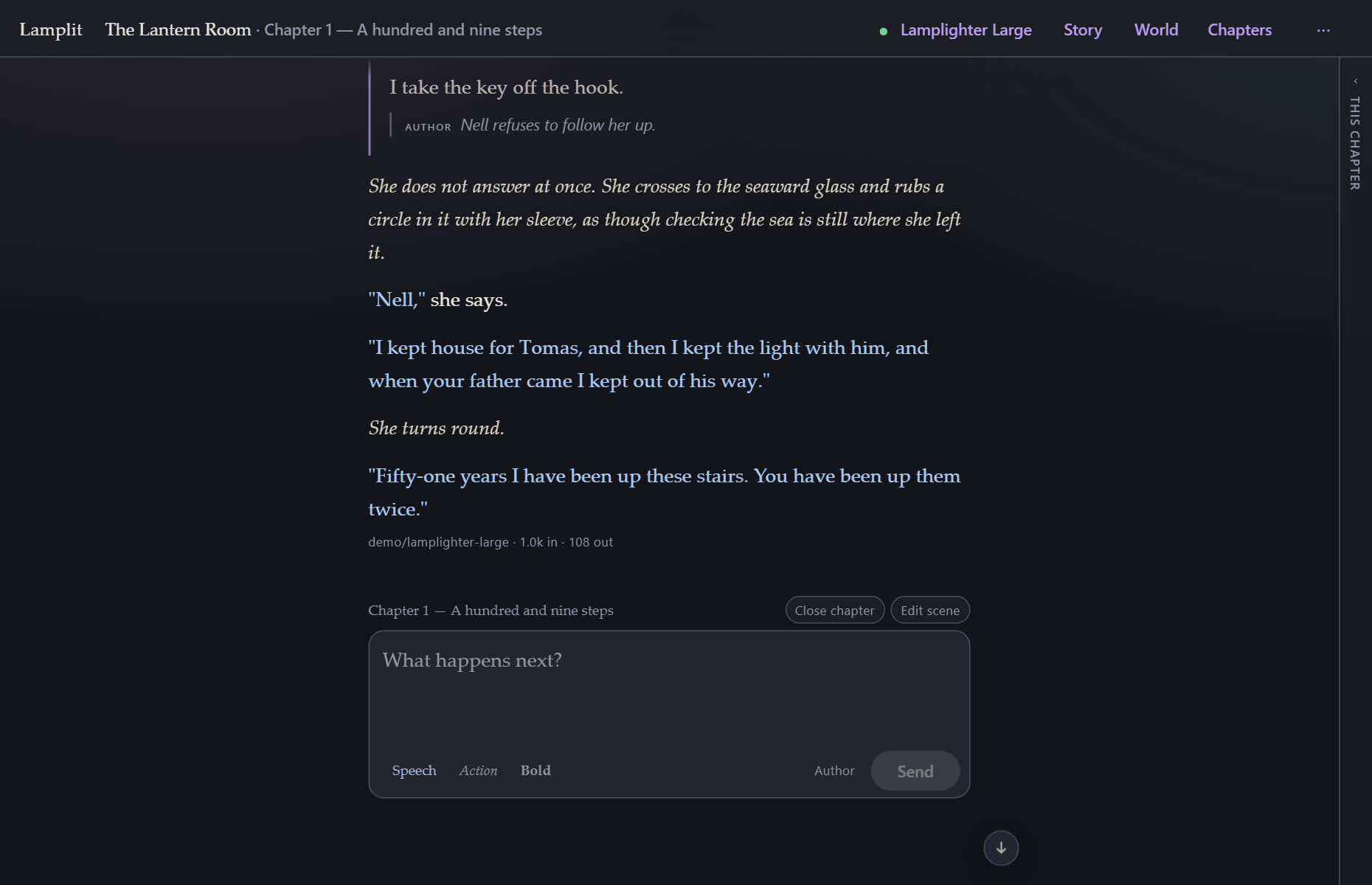
In the page it is a note under your prose — the interface font, italic, indented, labelled author — and never set as story text, because it is not any. Edit opens both halves in their own fields, and either one can be emptied. Closing the field with the button throws away whatever is in it, rather than sending it quietly.
What the model is told, and where the direction sits in the request, is
The prompt → Author. The short version: it is sent with your message, marked
[Author: …], it stays in the chapter for the turns that follow, and it is left out of the
summary when the chapter closes. It shaped the story; it is not in it.
When a chapter outgrows the budget
If the chapter has grown past what fits in one request, a note appears under the composer — 3 older messages left out — so the trimming is never silent. What was dropped, and everything else the request carries, is What the model sees, which lives behind Developer mode — see below.
What each message can do
Hover a message, or tab into it, and four small marks appear in the margin beside it — out past the edge of the text, never on top of it, so crossing the page with the pointer never takes a word away from you.
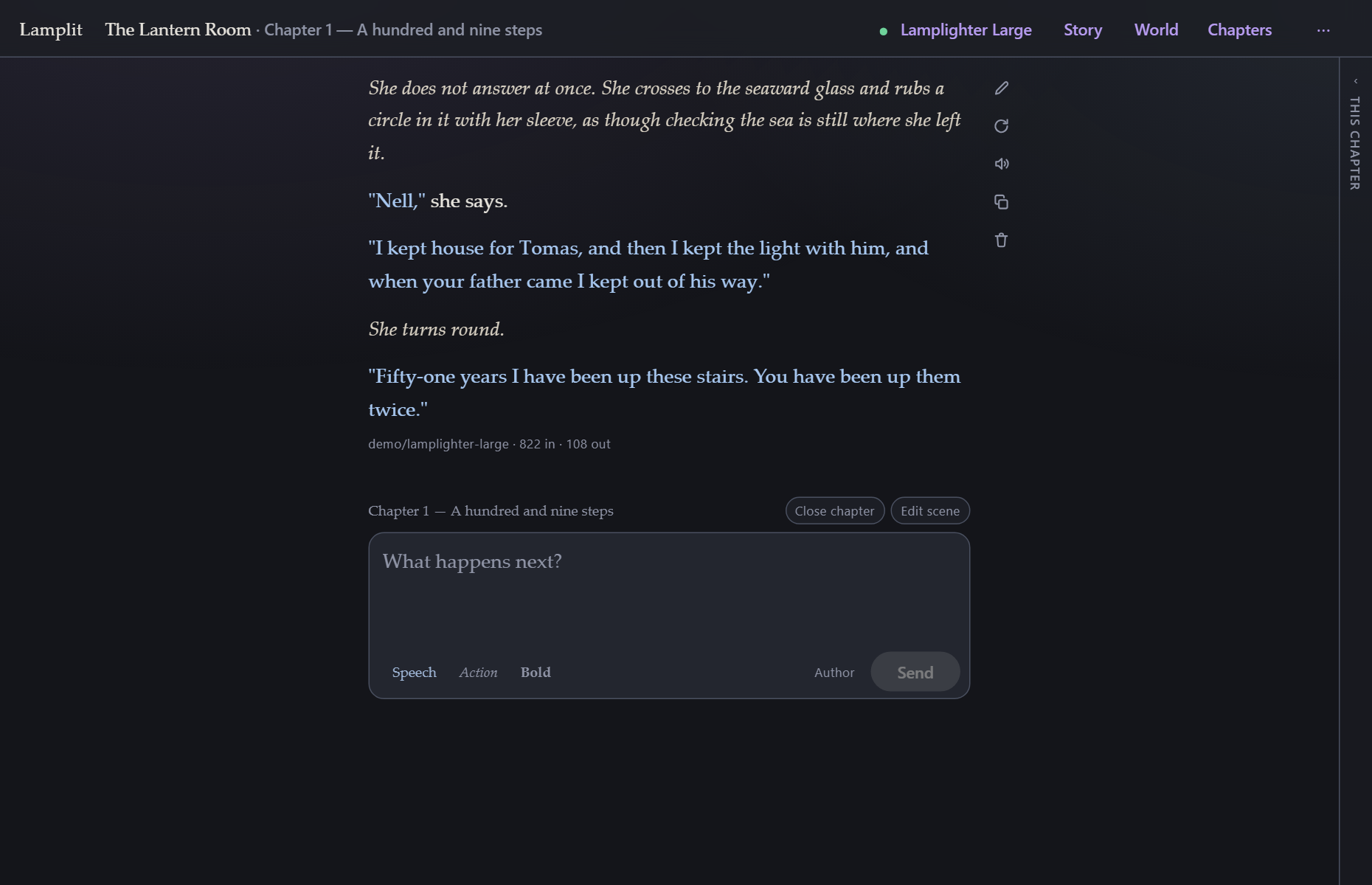
| Edit | Change the text in place. On a user line this is how you fix a typo without re-rolling; on an answer it is how you keep a good passage with one bad sentence. |
| Replay from here (your lines) | Drop everything after this line and send it again. |
| Regenerate (answers) | Drop this answer and everything after it, and ask again. |
| Listen | Read this message aloud, in the voice this device has. Press it again to stop. |
| Copy | The raw text, as written. |
| Delete | Just that message. |
Hovering each one says which it is. On a narrow window or a touch screen there is no margin to write in and no pointer to hover with, so the same actions sit behind a single ⋯ under the message, on the line that already carries the model and the token count.
None of these are special paths. Because the prompt is rebuilt from the documents on every request, an edit or a regenerate goes down exactly the same road as a fresh send — there is no conversation state to get out of step. See The prompt.
If a request fails, the answer is replaced by the provider’s own words and two buttons, Try again and Dismiss. A rejected key reads as a rejected key.
The chapter panel
The four things that shape the chapter being written — the scene, the narrator’s instructions, your persona and the cast — used to be behind modals that covered the page. They are down the right-hand side now, beside the words rather than on top of them.
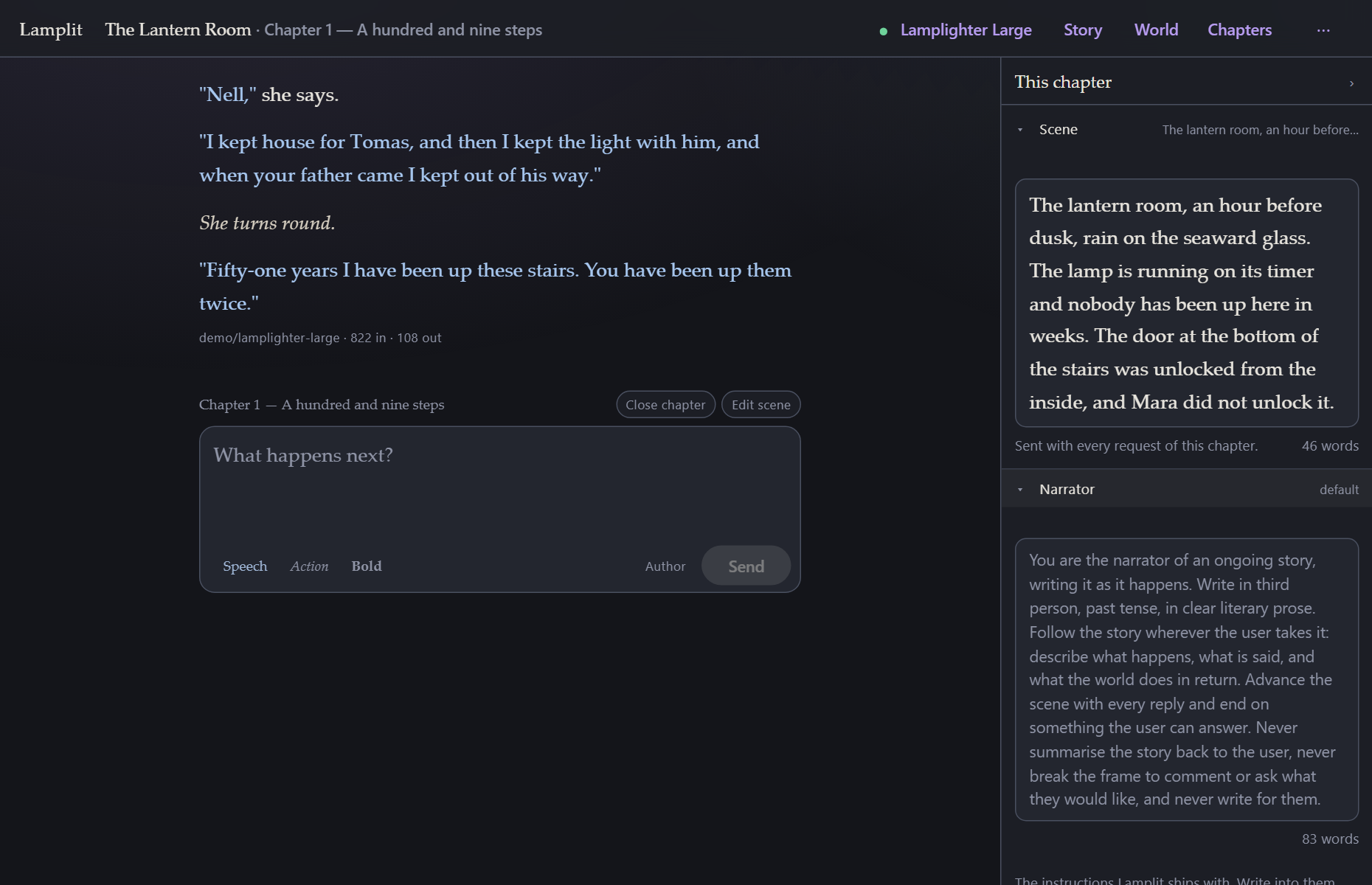
It is a thin edge until you want it. Click the edge, or press Ctrl+., and it slides open; either one shuts it again, and it opens the way you left it next time. Each section folds away on its own, and those stay folded too.
- Scene — the chapter’s own scene, edited where it is. The mark appears once the text differs from what is stored, and leaving the field saves it; there is no Save button to hunt for. A closed chapter shows its scene and will not take a change to it.
- Narrator (narrator mode) — the instructions the model is given. The default sits in the box greyed out; write into it and it becomes yours, with Back to the default to hand it back. Your own text is kept either way, so switching between them loses nothing.
- Persona — a name and a few lines. It belongs to the story rather than the chapter, and it is sent with every request in both modes.
- Cast (role-play mode) — one row per character: their colour, their name and the first line of their description. The dot opens the palette of ten. The switch on a row takes them in and out of the scene; when the story is cast one character at a time, clicking a row hands the model that character from there on, and the row being played is marked. The pencil at the end opens them in the Story sheet, because a character is a name and a paragraph and that is more than a row can hold.
Nothing about the app is in here — no connection, no sampling parameters, no reading settings. Those are not chapter fields, and they stay behind their own sheets.
On a wide window the panel takes its width out of the page: the reading column narrows and every word of it stays visible. On a narrow one there is nothing left to give, so it comes over the page instead, with Escape or a click on the page behind it to send it away. The composer is usable either way — the panel never takes the box you are writing in.
Preferences
Preferences holds everything that changes how the story looks to you and nothing about what is sent. It is behind the ⋯ menu in the top bar, or Ctrl/Cmd+, — it is the app being set up rather than the story being written, so it is not one of the bar’s own names. It opens on Reading, with Accessibility, Colours and Advanced folded away underneath.
Reading
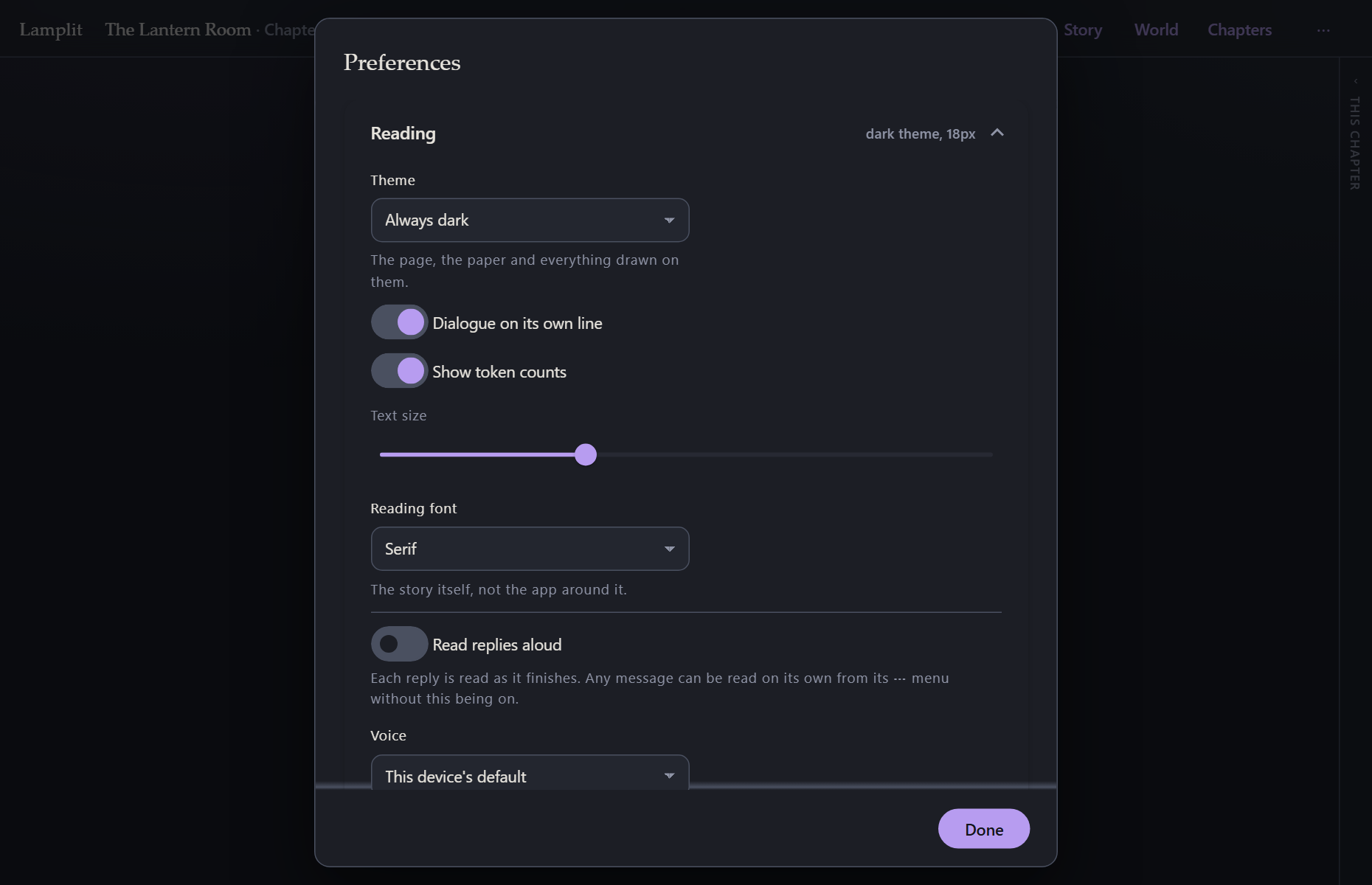
- Theme — Follow my computer, which is what a fresh install does, or Always dark or Always light for this app alone. Following it means following it: a computer that turns dark at sunset takes Lamplit with it, mid-chapter, with nothing to reload. A settings file written before this choice existed named a theme, so an upgrade leaves you in the one you were in.
- Dialogue on its own line — breaks each quoted line onto its own paragraph. This only has visible work to do when a model runs narration and dialogue together in one block; models that already break their own lines look the same either way.
- Show token counts — the line under each answer.
- Text size — 14 to 26 pixels.
- Reading font — the serif it ships with, a sans-serif, or a monospace, all from fonts your computer already has. It sets the story itself; the app around it stays as it is.
- Read replies aloud, and under it the voice and the reading speed — see below.
These are reading preferences and live in
settings.json, not in the story. The prompt instructions that ask the model to put dialogue on its own line, or to answer at a particular length, live in Story → Style — see Story and world.
Read aloud
Any message can be read out loud from its own actions — Listen, above. Read replies aloud does it without being asked: each answer is read as it finishes, which is what a phone propped against something across the room is for. On a phone the same switch is in the ⋯ menu, because Preferences is not offered there; see On your phone.
What is read is the words: the asterisks that make an action italic, the heading hashes and the list bullets are left out, and the quotation marks are kept, because a voice pauses at them. In role-play with one character at a time, the speaker’s name is said first — a listener cannot see the name above the passage. An answer that failed is never read; nor is your own line, which you wrote.
The voice list is whatever this machine ships with: on Windows the ones installed under Speech, on a Mac the ones in System Settings, on a phone the ones the phone has. Nothing is sent anywhere to do it — the reading is done by the browser, on the device, and no request leaves the machine. The choice is stored by the voice’s name, so a phone that has never heard of the voice your laptop uses simply reads in its own.
Reading speed runs from 0.6 to 1.6 times the voice’s own pace.
Dictation is the keyboard’s job, not Lamplit’s. Every phone keyboard has a microphone key that dictates into any text box, this one included. Lamplit does not offer a dictate button of its own: the browser API for it refuses to run on a plain-HTTP address like the one your phone reaches Lamplit on, and getting round that needs a domain name and a certificate for a server that lives on your desk. See On your phone.
Accessibility
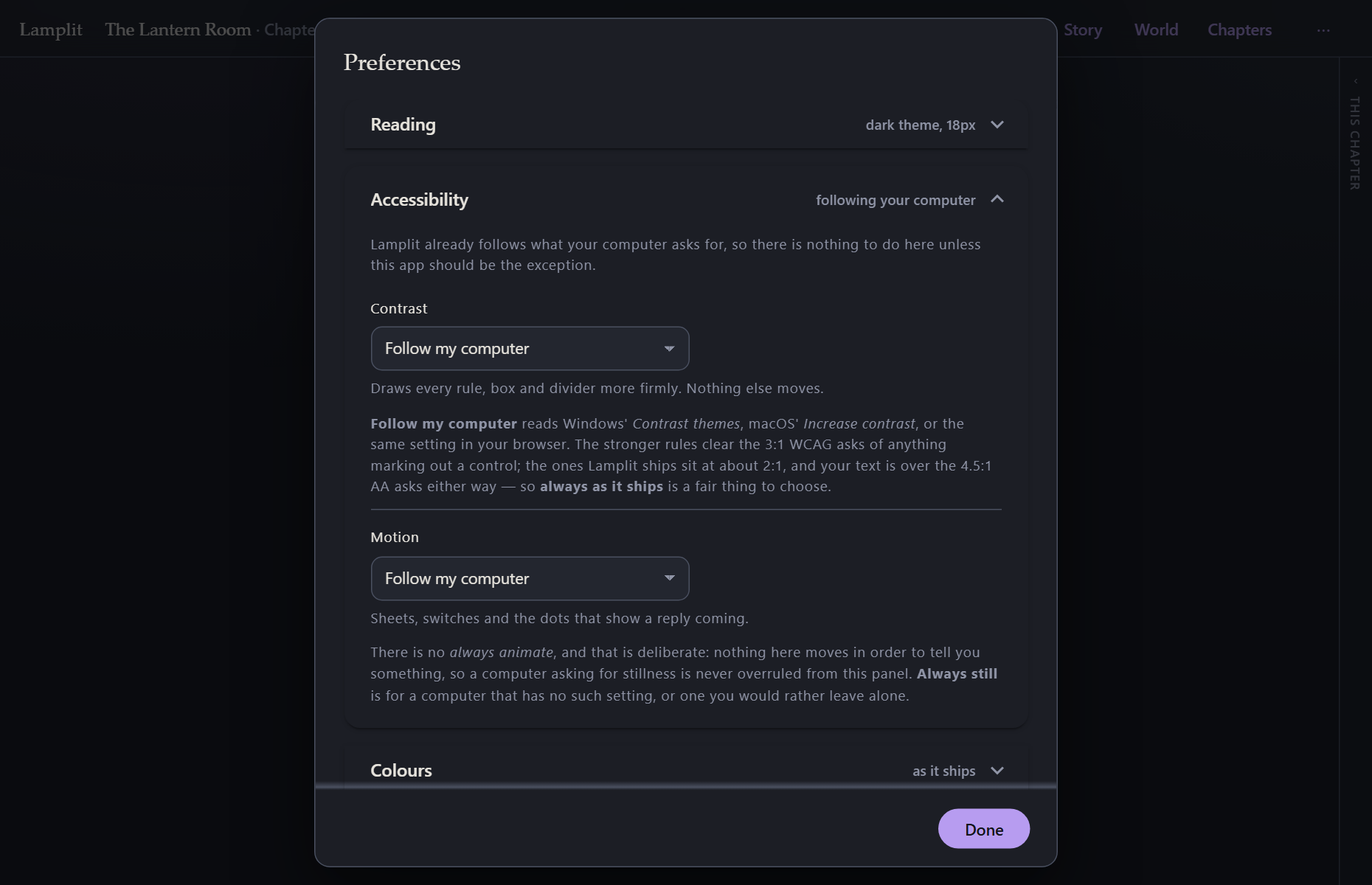
Lamplit already follows what your computer asks for, so there is nothing to do here unless this app should be the exception. Two questions, and both open on Follow my computer.
Contrast draws every rule, box and divider more firmly — the hairlines round the composer, the fields, the cards and the panel. Nothing else moves: the text, the dialogue and the accent are where they were.
- Follow my computer reads Windows’ Contrast themes, macOS’ Increase contrast, or the same setting in your browser, and is what a fresh install does.
- Always stronger is for a computer with no such switch, or for wanting it here and not everywhere.
- Always as it ships is the way back, and the reason there are three states rather than two: without it, a computer set to more contrast would have the last word here. The rules Lamplit ships sit at about 2:1, which draws every box without turning a page of prose into a form; the stronger set clears the 3:1 that WCAG asks of anything marking out a control. Your text is over the 4.5:1 that AA asks either way, so this is a fair thing to choose.
A page palette follows the switch with everything else — each of the ten has a stronger set of rules of its own, so a story with a page keeps that page and not somebody else’s hairline.
Motion turns off the sheets scaling in, the switches sliding, and everything else that moves. There is no always animate, and that is deliberate: nothing in Lamplit moves in order to tell you something, so a computer asking for stillness is never overruled from this panel. Always still is for a computer that has no such setting, or one you would rather leave alone.
Windows’ Contrast themes — and anything else that replaces the colours of every app with a set of your own — is a third thing your computer can ask, and it is not one of the questions here: your palette wins outright, and there is nothing for a panel to overrule. Lamplit’s part is only to stay drawn in it. Nearly all of the app is text, a rule and a box, which follow for free; the three controls it draws for itself used to vanish into your colours, and now keep an arrow on a dropdown, a fill in a tick box and a knob on a cast row’s switch. Wherever the keyboard is, in any of this, the same accent ring says so — one ring, on every button, field, pill and handle in the app.
Both live in
settings.jsonrather than in the story, so they are the app being set up and not one story’s look — and Follow my computer is answered by whichever computer is showing Lamplit, which matters when the samesettings.jsonis being read on a phone as well.
Colours
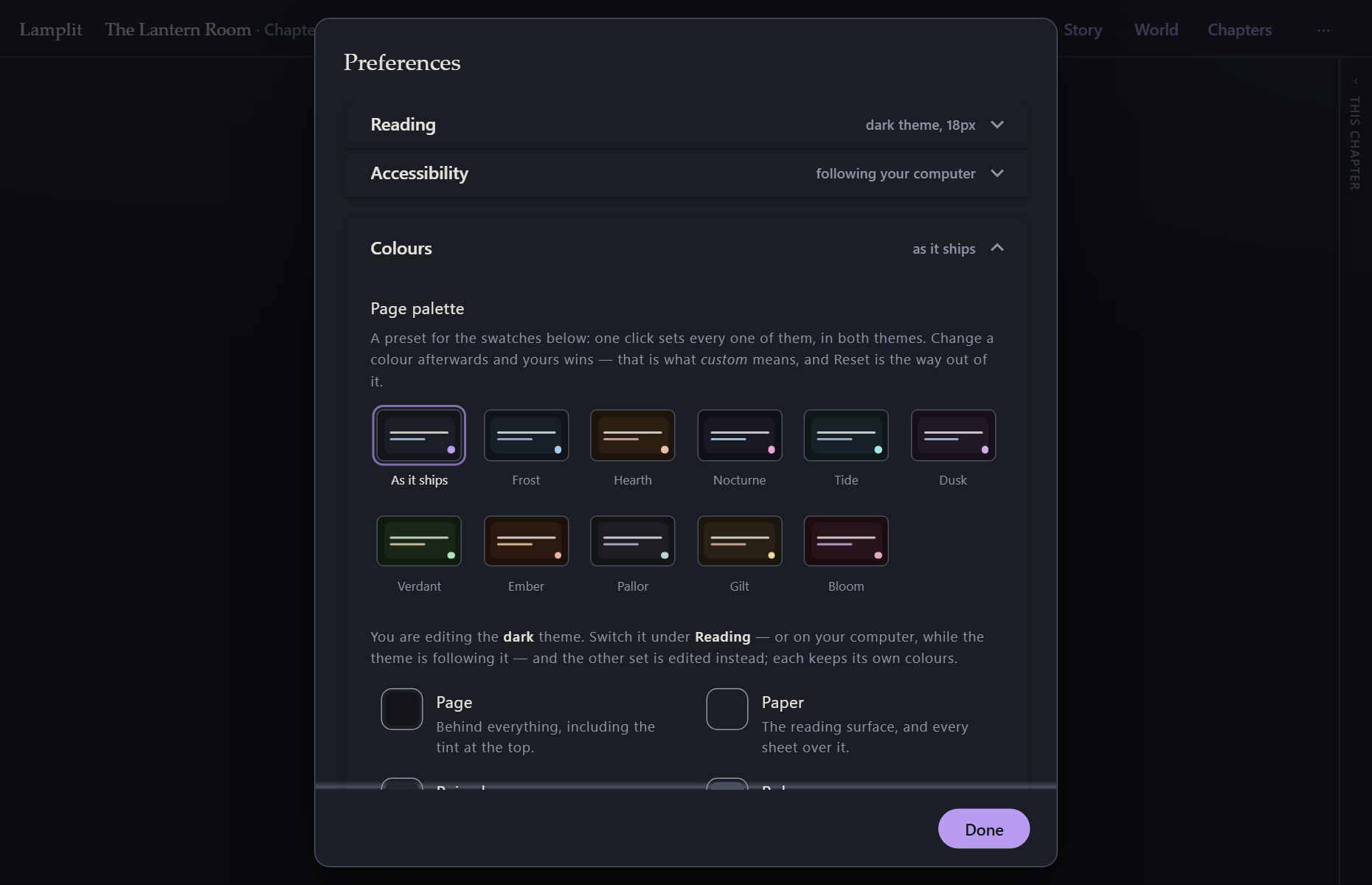
At the top is the page palette: eleven swatches, the page as Lamplit ships it and ten pages to read a story on — Frost, Hearth, Nocturne, Tide, Dusk, Verdant, Ember, Pallor, Gilt and Bloom. One click sets every swatch below, in both themes at once, so a palette is a preset for this panel and nothing more. Each was built rather than picked: a hue per role, walked towards its own ink until every colour the story is set in — the text, the quiet furniture, the dialogue, the accent and the errors — clears WCAG AA against all three of that theme’s papers, and until its rules are drawn as firmly as the ones Lamplit ships. None of them is a worse page to read on than the one it opens with, in either theme, and each has a stronger set of rules again for a machine asking for more contrast. Change a colour afterwards and yours wins — the row says custom while any of them is set, and Reset puts them back to the palette underneath. When the open chapter has a page of its own, the row says so and edits that chapter’s instead of the story’s; see Story and world.
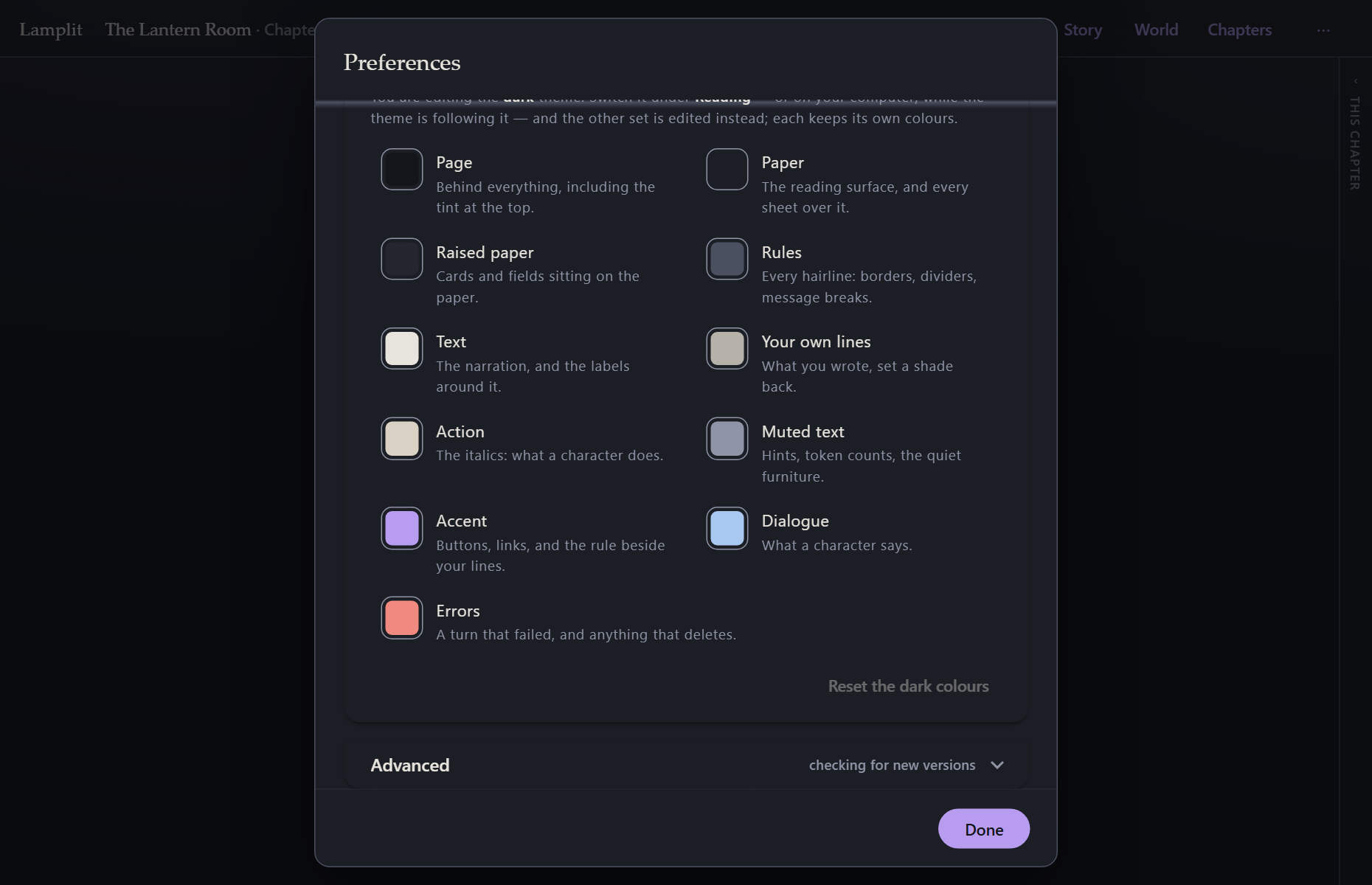
Under it, every colour the two themes differ on, one swatch each, and changing one redraws the page as you drag. Nothing has been added to the palette that was not already in it: Page, Paper, Raised paper, Rules, Text, Your own lines, Action, Muted text, Accent, Dialogue and Errors are the names the stylesheet itself uses, and each says what moves when it moves.
- Each theme keeps its own set. Editing while the dark theme is on edits the dark colours; switch to light in Reading — or on your computer, while the theme is following it — and you are editing the light ones. Neither touches the other.
- Reset the … colours puts one theme back to whatever is underneath — the palette you picked, or what Lamplit ships — and asks first. It clears only what you changed, so a colour you never touched cannot drift.
- A contrast warning, not a block. If your text and your paper fall below the 4.5:1 that WCAG AA asks of body text, it says so and lets you carry on. It watches a second pair you cannot see from here, too: the label on a filled button — Send, Done, Delete — is the page colour drawn on the accent, so a mid-tone Page takes every one of them with it.
Only what you changed is written down, so a colour a later version of Lamplit improves still reaches you unless you had overridden that exact one.
At the foot of the section is the cast of the open story, one colour input each. Every character already has a colour from a palette of ten — see Story and world — and this is the way out of the ten: a colour of your own, used in both themes, with Back to the palette to give it back. It belongs to the story rather than to the app, so it travels with a duplicate and goes with a deletion.
Advanced
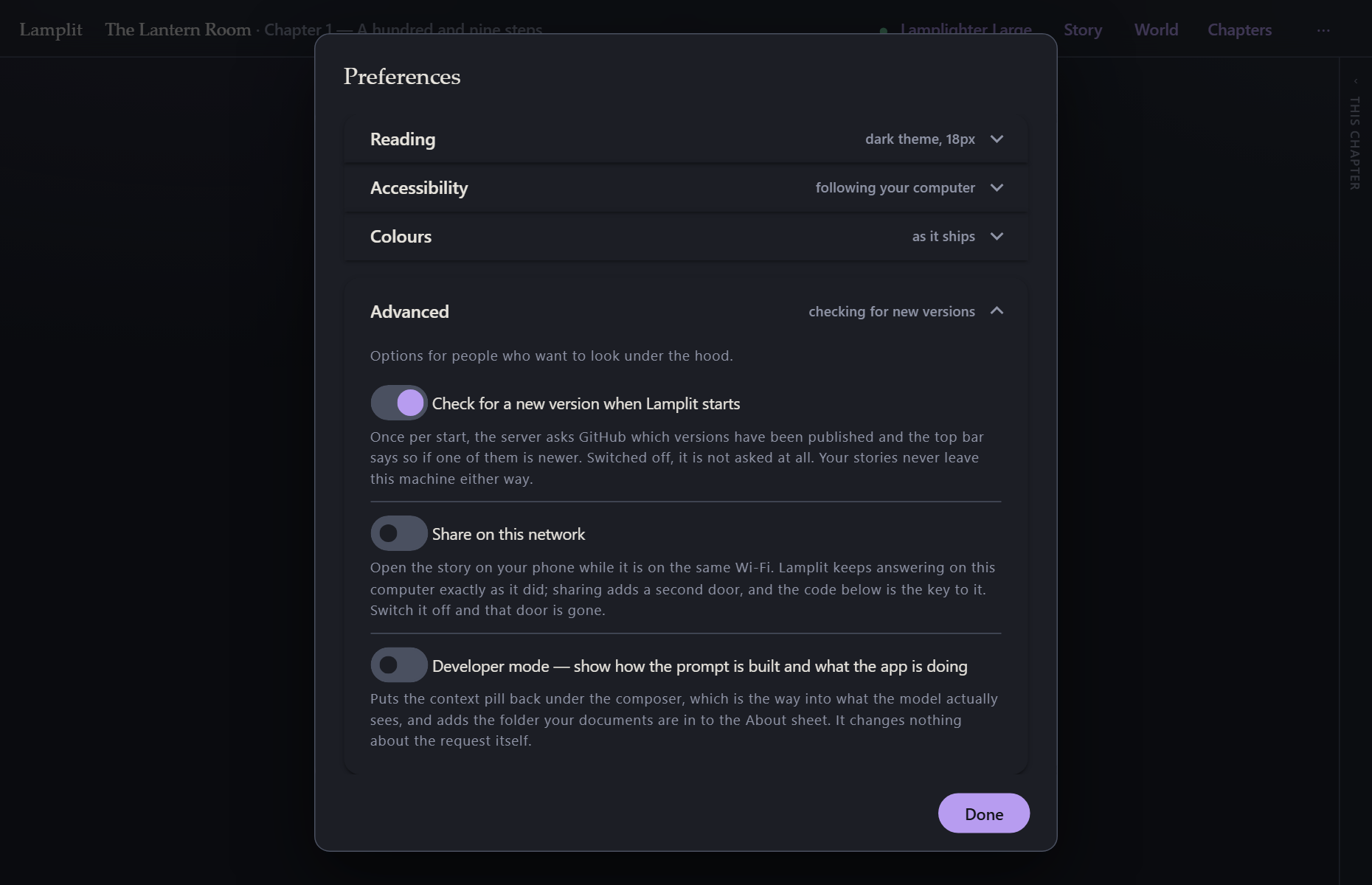
Options for people who want to look under the hood. There are two.
Check for a new version when Lamplit starts — on by default. Once per start, the server asks GitHub which versions have been published, and the top bar says so when one of them is newer. Switched off, it is not asked at all. See Upgrading for what the request carries and what the pill leads to.
Developer mode puts back the parts of the app that are about the app rather than about the story, and it is off on a fresh install:
- The context pill under the composer —
context 805 / 16k, a live count of what the next request will carry against your budget, updating as you type. Clicking it is the way into What the model sees. - The folder your documents are in, under the version in ⋯ → About Lamplit.
It changes nothing about the request. A story written with it on and a story written with it off send exactly the same thing; the difference is only whether you can watch.
Getting around
The top bar always says which story and which chapter you are in, and which model is answering. Click the story name for the story menu — switch, rename, duplicate, delete, or start a new one. Click the model name for Model, which is the connection and its parameters as two tabs; see Models and parameters.
The bar’s own names are Story, World and Chapters, because those three are the story being written. The ⋯ menu beside them holds the rest, in three groups:
| New chapter…, Edit this scene…, Clear this chapter | this chapter |
| Preferences… — also Ctrl/Cmd+, | the app, set up once |
| About Lamplit… | which build you are running, the line to quote in a bug report; see Upgrading |
Everything is saved as you write it. There is no Save button anywhere in the app, and Escape out of any modal keeps what you typed in it.