Upgrading
Upgrading
← Documentation · Previous: On your phone · Next: Development
Every way of running Lamplit keeps your stories somewhere the new version can find them, so upgrading is: get the new one, run it. The one thing worth knowing per channel is whether the stories sit inside what you are replacing.
Whichever you have
| You have | Upgrade by | Your stories |
|---|---|---|
| The installer | Running the new installer over the old one. No need to uninstall first. | In your profile. Not touched. |
| The portable .exe | Replacing the .exe with the new one. |
In the data folder beside it. Keep that folder. |
| The zip | Unzipping the new folder, then carrying data across (below). |
Inside the old folder. Move it, or point at it. |
| The source | git pull && npm install, then npm run build. |
In data/ at the repo root. Not touched. |
The zip is the only one that needs a decision, because the folder you downloaded holds both the app and — after the first run — the stories.
The zip, in detail
Unzip the new version beside the old one. Then either move the data across:
# Windows (PowerShell)
Move-Item lamplit-0.2.0\data lamplit-0.2.1\data

# macOS, Linux
mv lamplit-0.2.0/data lamplit-0.2.1/data
…or leave it where it is and tell the new one where to look:
./start.sh --data ../lamplit-0.2.0/data
Either works; moving it is tidier, and then the old folder can be deleted whole. backups can
travel the same way, or be left behind — it is only ever written to.
Nothing is registered with the operating system, so there is no uninstall step: deleting the old folder is the whole of it.
Where each way of running it keeps your stories
One place to look, since the answer decides everything above.
data lives |
|
|---|---|
| Installer (Windows) | %APPDATA%\Lamplit\data — C:\Users\<you>\AppData\Roaming\Lamplit\data |
| Installer (.deb, AppImage) | ~/.config/Lamplit/data |
| Portable .exe | beside the .exe |
| The zip | beside start.bat / start.command / start.sh |
| The repo | data/ at the repo root |
| Anywhere | wherever --data or LAMPLIT_DATA_DIR says |
In the desktop app, File → Open data folder opens it without any of that typing. The layout
inside is the same everywhere and is described in Your data; a daily zip of it
lands in backups next door when the app starts, which is your safety net if an upgrade goes
somewhere you did not intend.
How you hear about a new one
Every way of running Lamplit checks, once, when it starts: the server asks GitHub which versions have been published, and the top bar says so when one of them is newer than the one you are running.
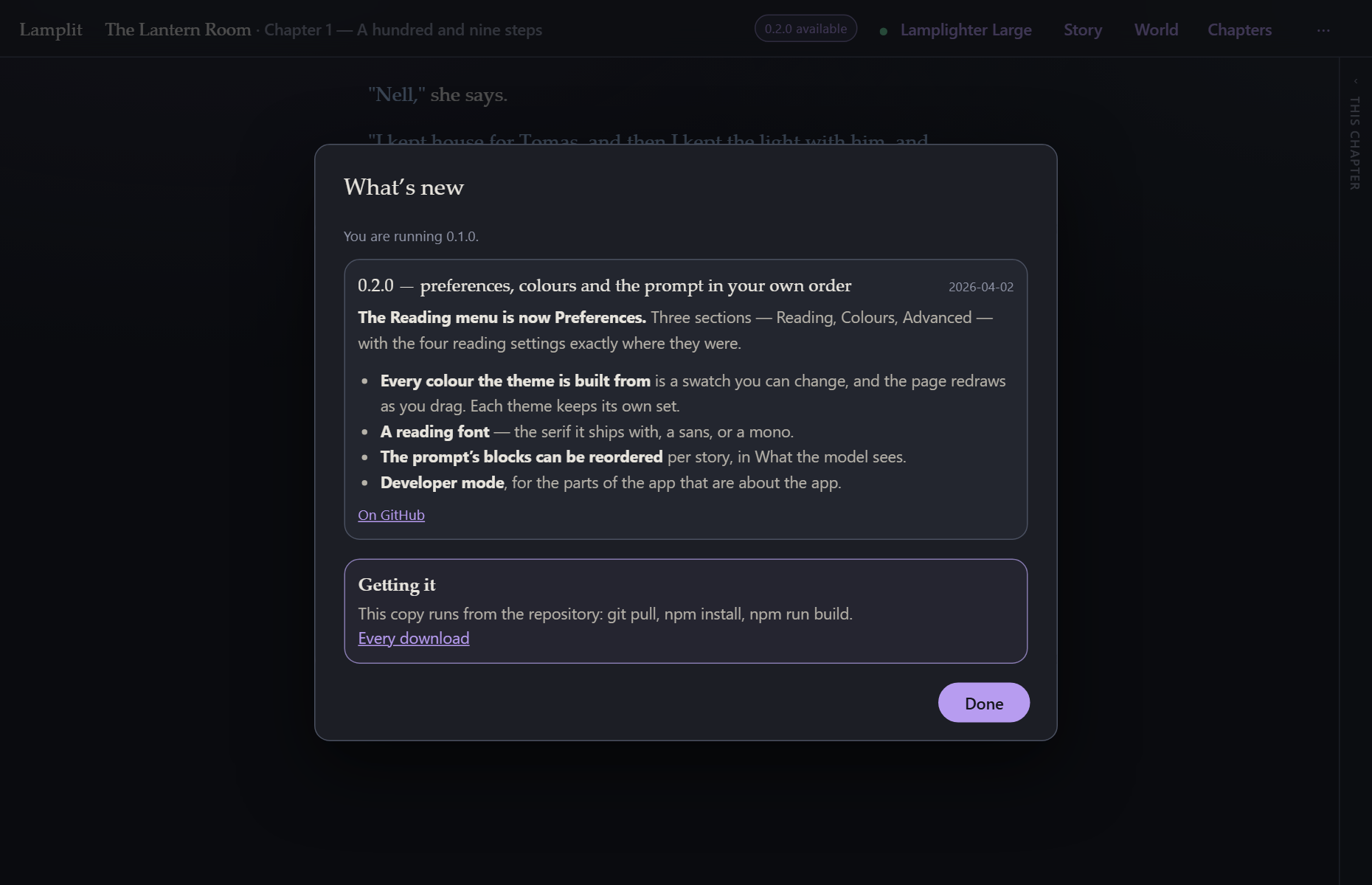
It is a small pill — 0.2.1 available — and nothing else. No modal, no banner over the page you are writing on. Click it for What’s new: every release above yours, newest first, with the notes as they were written, and a line at the bottom about getting it on the channel you are using. The same sheet, showing every release, is under ⋯ → About Lamplit → Release notes, because the notes are worth reading with nothing pending.
What the desktop app does with the answer is what it always did: electron-updater downloads the new version on its own and installs it the next time you quit. The zip and a copy running from the repository have nothing to install for you, so the sheet links to the download instead.
What leaves your machine. One request, to
api.github.com, asking for the list of published releases. It carries what any HTTP request carries — a URL, a user agent and your IP — and nothing about you, your stories or your provider. The server makes it, not the browser, so the only host the app itself ever talks to is still the model endpoint you chose. The desktop app’s updater asks the same project’s releases a second time, for the installer rather than the notes, and only when the check below is on.
Switching it off. Preferences → Advanced → Check for a new version when Lamplit starts.
Off means the server is not asked, so GitHub is not asked either — the request does not happen
rather than happening and being ignored. In the desktop app the same switch stands the installer’s
own updater down with it: nothing is fetched, nothing is downloaded, and nothing is waiting to
install when you quit. LAMPLIT_UPDATE_CHECK=0 in the environment does the same for a zip started
by a script:
LAMPLIT_UPDATE_CHECK=0 ./start.sh
With it off, Release notes in About still works: opening that sheet is you asking, so it asks then.
What the app does when it notices
The server writes the version it is running into data/lastRun.json. When it starts and finds a
different one there, it says so in its log —
upgraded 0.2.0 → 0.2.1
— and the app shows one line at the top of the page: Lamplit was upgraded to 0.2.1, with a link
to what changed in it. Dismiss it and it is gone for good; it is recorded in settings.json, so
it never appears twice for the same version.
That is the other half of the same story: the pill above is before you upgrade, this line is after. Both point at the same release notes.
A fresh unzip with no data folder has nothing to compare against and says nothing, which is
right — there is no upgrade to report. Neither is anything reported by a build that carries the
same version number as the one before it.
Which build am I running?
⋯ → About Lamplit, which is the answer to give in a bug report:
Version 0.2.1
build 42 · a1b2c3d · 2026-09-04 · zip
The version alone stops being enough once two builds have carried it. The build number is the CI
run that made it, the short SHA is the commit it was built from (with a + if the tree was not
clean), and the last word is how it is being run — desktop, zip, or dev for a copy running
from the repository. In the desktop app the same line is under Help, and /api/health returns
every field of it for anyone scripting against the server.
Downgrading
Nothing stops it: install the older version, or run the older folder. Documents are merged field
by field when they are read, so a settings.json written by a newer version loads in an older one
— it ignores what it does not know. The upgrade notice stays quiet on the way down, because
“what’s new” would be a page about the version you just left.