Getting started
Getting started
← Documentation · Next: Reading and writing
Getting it
Download it from the front page. Windows and Linux; one file, one icon, and nothing to install first. macOS is not built, and that page says what to do instead.
That is the whole of it. The desktop app covers where it keeps your stories and how the window works.
What you need besides
- Somewhere to send the story — a key from a provider, or a model running on your own machine. Every provider the app knows fills in its own URL and links to the page where it hands out keys — the model makers, the aggregators that resell them, and the ones you run on your own machine; Models and parameters lists them all. You do not need an account with anyone in particular, and nothing is sold here.
- Nothing else.
The other ways to run it
Neither is necessary; both exist because some people prefer them.
The zip — a megabyte, runs from one call, keeps your stories in a folder you chose. It needs Node.js 20.19 or newer already on the machine, which is what its start scripts check for. See Running it anywhere.
From the source — the way in for anyone who wants to change it:
npm install
npm start
npm start runs both halves of the app: the persistence server on
http://localhost:4177, and the dev server on http://localhost:4200 which proxies /api to it.
Open 4200. Everything comes from the public npm registry, and there is no postinstall step.
Development has the rest.
The first run, in three questions
A fresh install asks you three things, in this order, and then gets out of the way. It never asks again.
1. Where to send the story
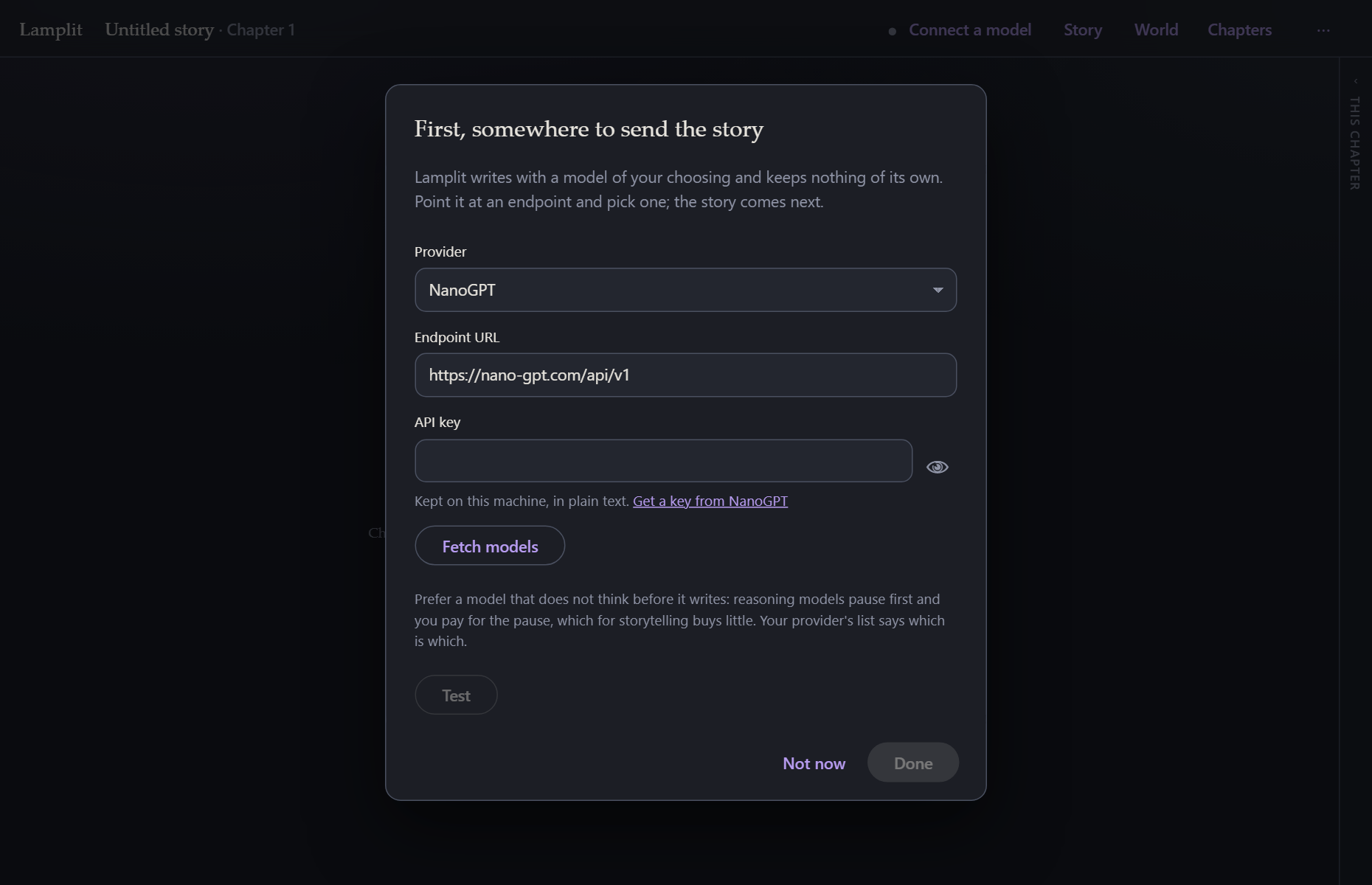
This is the one screen the app opens on, because nothing else means anything until it knows where to send the story. It will not take Escape for an answer, and Done stays dark until there is an endpoint and a model. (There is a Not now if you want to look around first; the composer will simply stay shut and tell you why.)
Pick your provider from the list — the URL fills itself in, and the key hint underneath links straight to the page where that provider hands out keys. (Or pick Custom and type any URL, which is how you reach a model running on your own machine.) Paste the key, press Fetch models, choose one, and — worth doing once — press Test, which makes one real round trip and tells you whether the whole path works.
Afterwards the same form is behind the model’s name in the top bar — as the Connection tab of Model, with Parameters beside it — and Ctrl/Cmd+K opens it from anywhere:
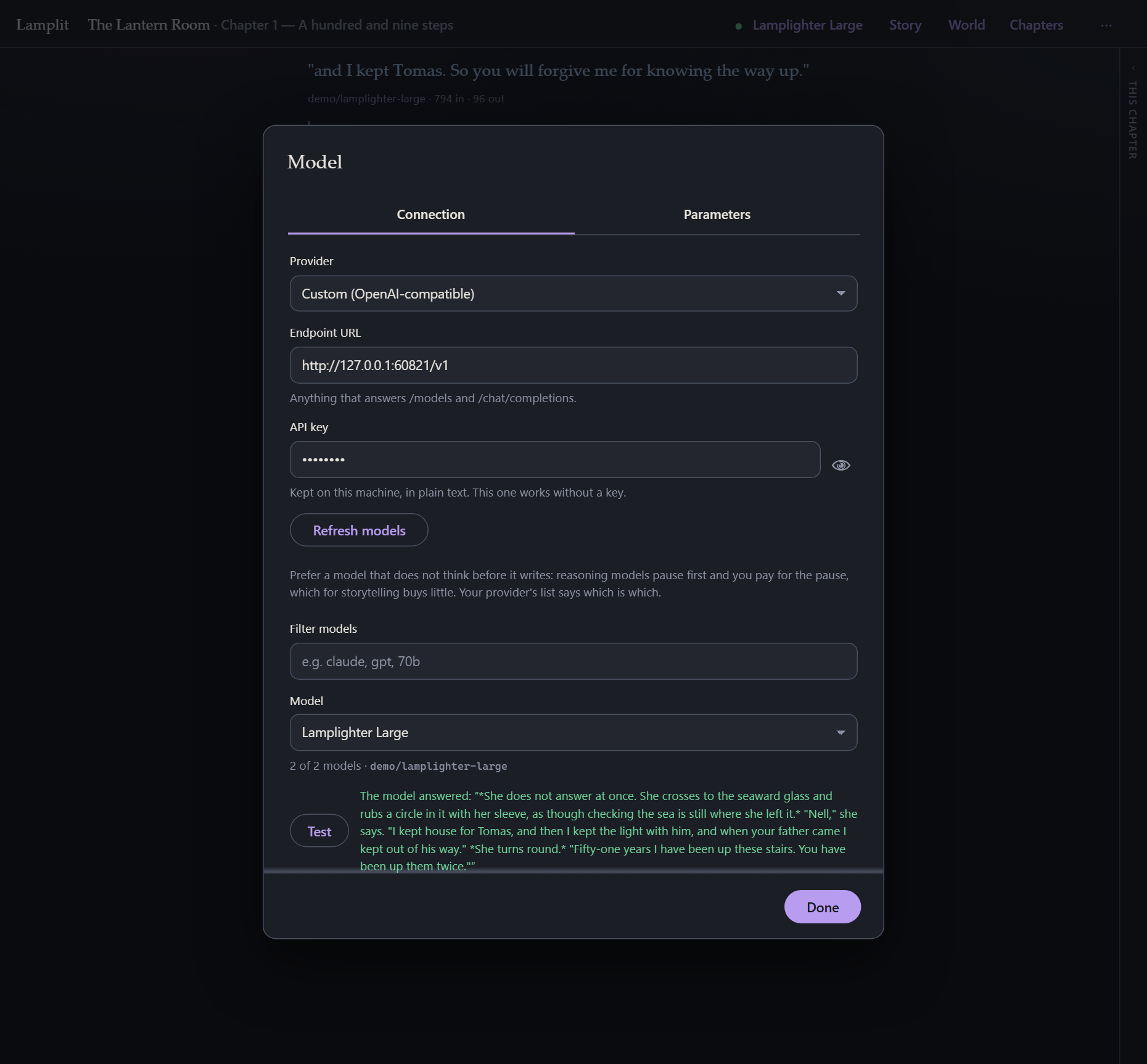
More on all of this in Models and parameters.
2. Who tells the story, and who you play
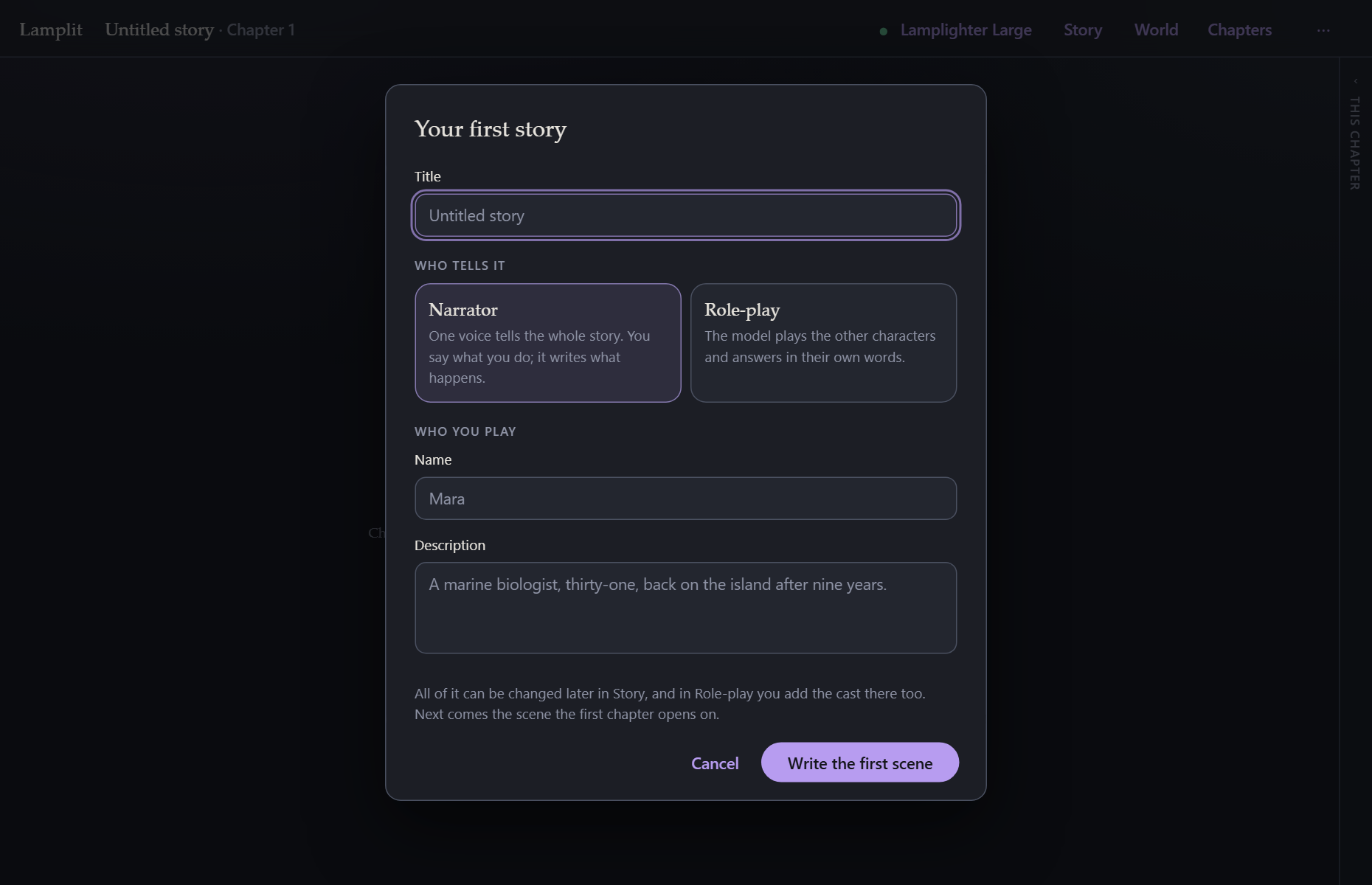
- Narrator — one voice tells the whole story. You say what you do; it writes what happens.
- Role-play — the model plays the other characters and answers in their own words. You add the cast in Story afterwards.
Who you play is your persona: a name and a couple of lines. Both are optional, both are editable later in Story, and both are sent with every request — which is why they are asked for now rather than discovered later. See Story and world.
3. The opening scene
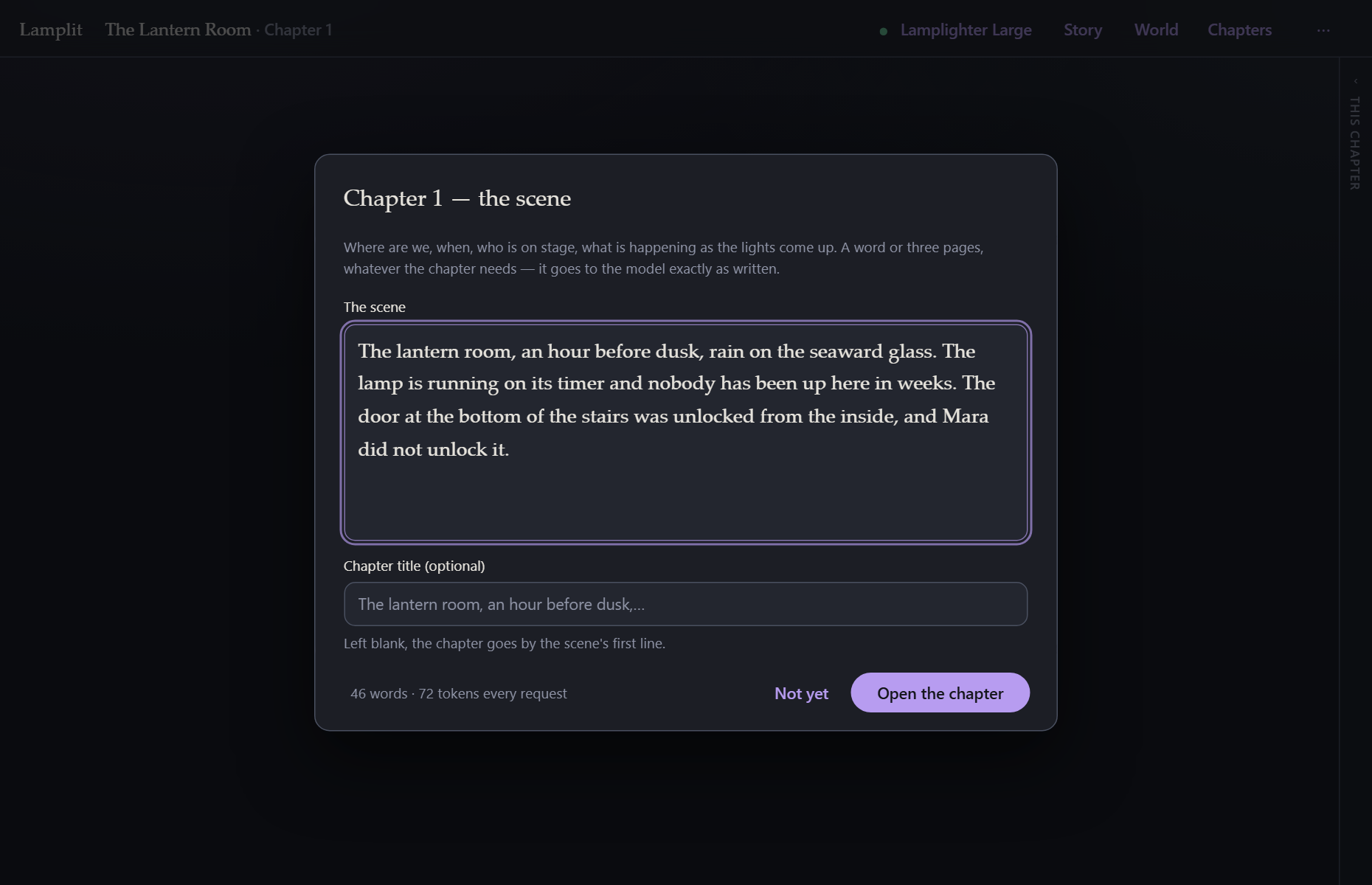
This is the one compulsory step in the app. A chapter cannot be written into until its scene is written, and any non-empty text will do.
Write it the way a scene opens in a playscript: where we are, when, who is on stage, and what is happening as the lights come up. It is plain text — no fields, no schema, nothing parsed out of it — and it reaches the model exactly as you typed it.
The chapter title underneath is optional. Left blank, the chapter is known by the scene’s first line.
Press Open the chapter and the composer appears.
Writing the first line
Type what you do and press Enter. The answer streams in as it is written.
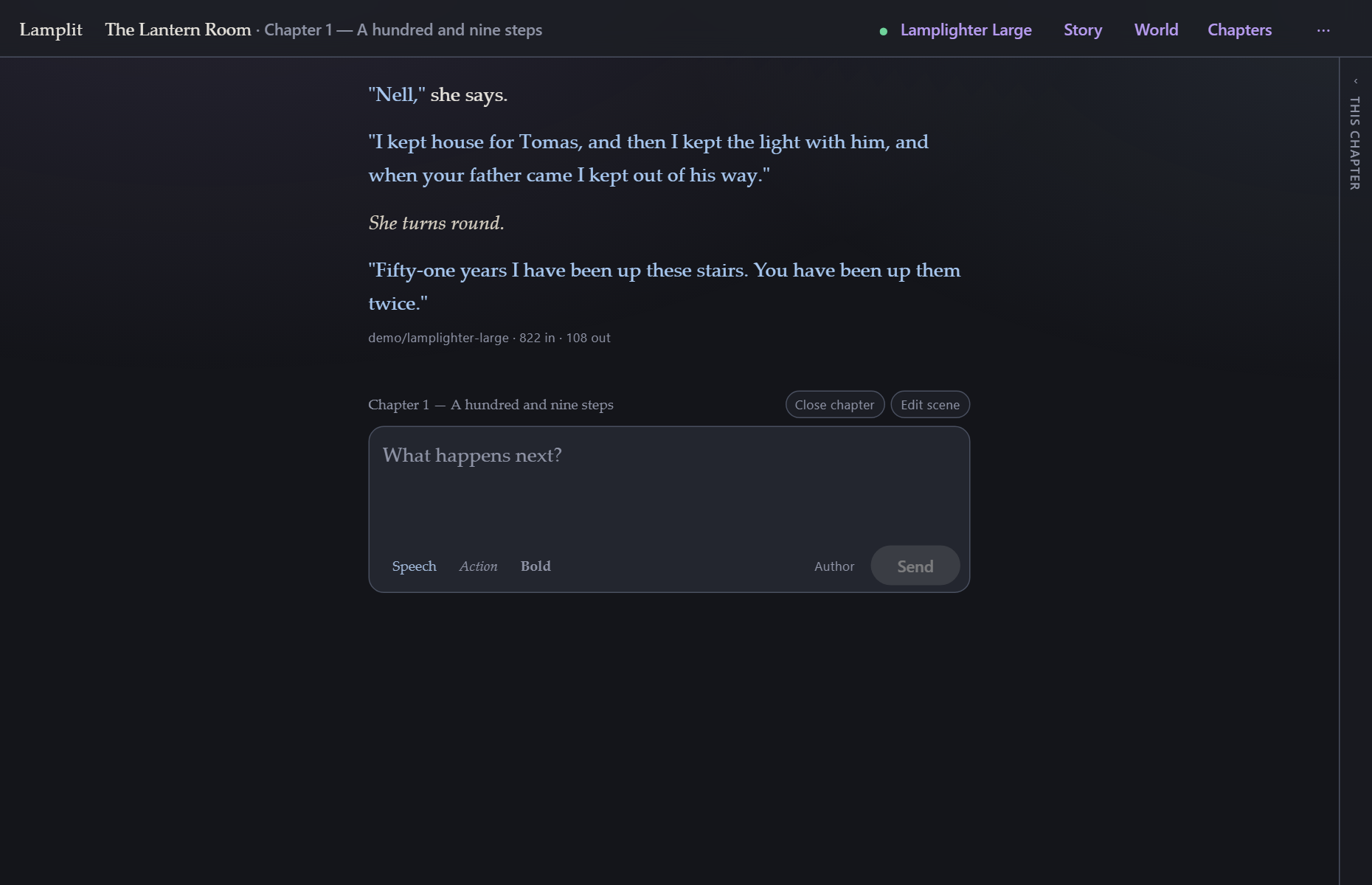
Some things worth knowing straight away:
| Key | Does |
|---|---|
| Enter | send |
| Shift+Enter | new line |
| Ctrl/Cmd+Enter | regenerate the last answer |
| Ctrl/Cmd+K | open Model — the connection, and its parameters |
| Ctrl/Cmd+. | the chapter panel, in and out |
| Ctrl/Cmd+, | open Preferences |
| Escape | close a modal — everything in it is already saved |
- Stop appears while an answer is streaming, and keeps whatever arrived before you pressed it.
- context 805 / 16k under the composer is what the next request will cost. Click it to see the whole prompt.
- Nothing has a Save button. Everything is written to disk as you type.
Where to next
- Carry on writing, and when the chapter feels finished, read Chapters — the “close chapter” step is what makes long stories work here.
- Give the story a world: Story and world.
- Curious what is actually being sent? The prompt.